Guide
How to loop part of a song until you can play it
The hard part of a song is usually a few seconds long. Repeat just those seconds, slowly at first, until you play them cleanly, then join them back into the song.
Short answer
- Mark the start of the hard part and the start of what follows it.
- Turn on the loop, so playback jumps back to the start each time it reaches the end.
- Slow the loop down until you play it cleanly three times in a row.
- Raise the speed in small steps, then move the loop along or widen it to take in the notes around it.
- Play the whole passage without the loop before you call it done.
How long the loop should be
Short. One or two bars, three to eight seconds, is enough for most hard spots. A long loop gives you time to drift and plays the easy notes as often as the hard ones. If one fast run is the problem, loop only the run.
Start the loop a beat before the hard note, not on it. The note that goes wrong is usually the one you arrive at, and you need the approach to practice the arrival. End the loop just after the hard part, on a note you can hold, so you have a moment to reset before it starts again.
Step 1: Mark the edges
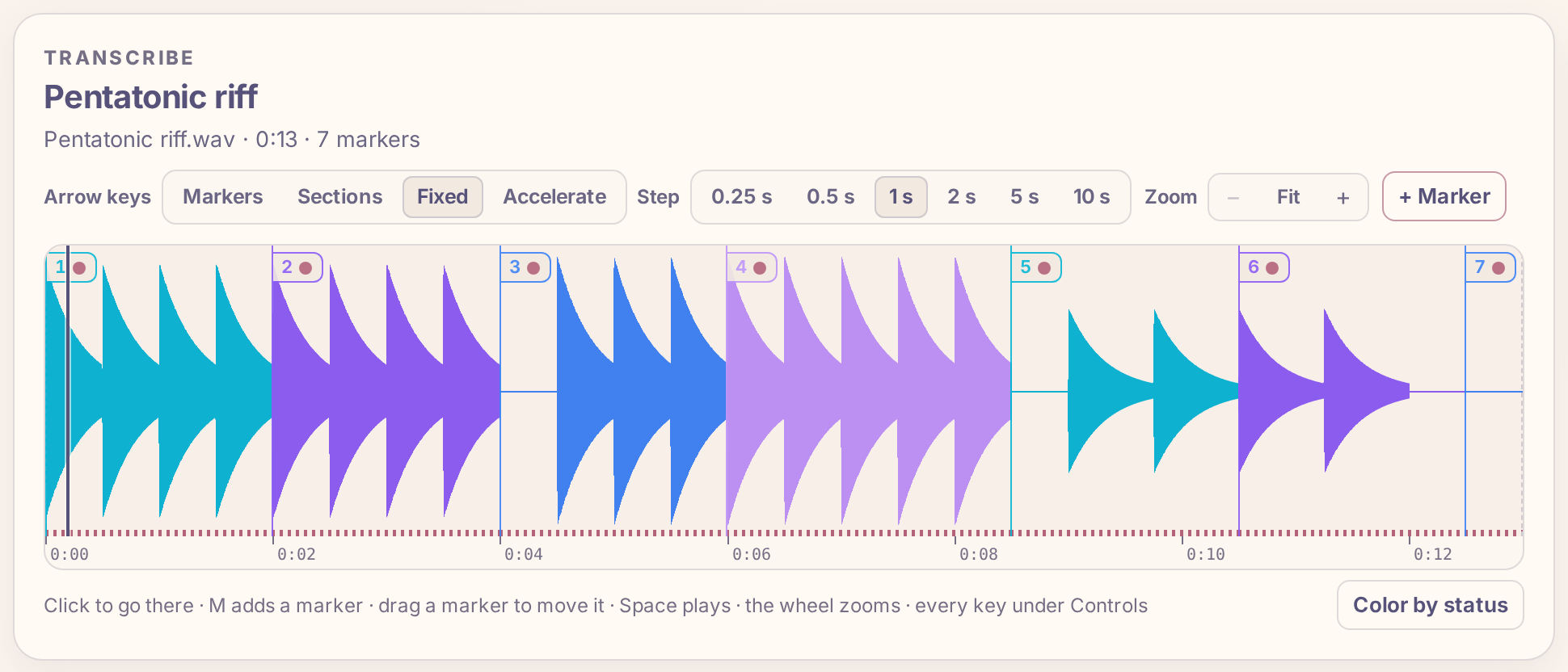
In Practice Lab, open Transcribe and choose the recording from your device. Play it and press M at the start of the hard part and again where it ends. Markers stay in time order whatever order you add them in; drag one to move it, or press Delete to remove the current marker, the one at or before the playhead. Zoom in with the mouse wheel to put a marker right on a note's attack.
Step 2: Turn the loop on
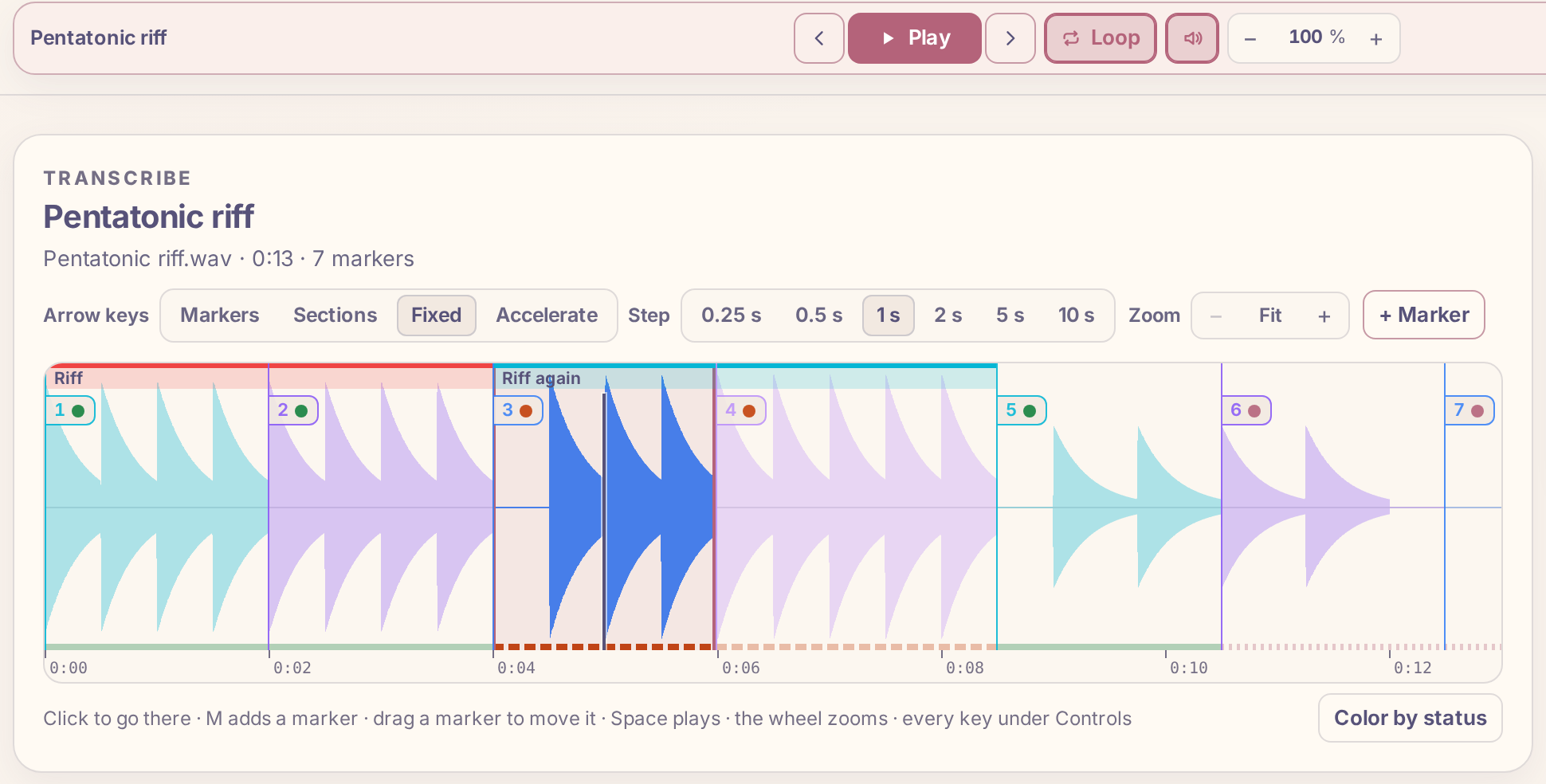
Put the playhead between the two markers and press L or Loop. The loop takes the segment the playhead is in, from the marker before it to the marker after it. Playback never runs past the end of the loop: it goes back to the start and plays it again, exactly from the marker, whatever format the file is in. Everything outside the loop fades on the waveform, so you see what you are repeating.
You can also set the loop's edges in the Markers & loop panel, with its From and To pickers: any marker, the start or the end of the recording.
Step 3: Slow it down and count clean repetitions
Press ↓ to lower the speed 5 % at a time; the pitch stays the same, so you play along in the recording's key. Go down until you can play the loop without a mistake, then count: three clean repetitions in a row before you raise the speed by one step with ↑. A mistake resets the count. If you stall at one speed, go back two steps and play it there a few more times.
Watch for the spot that goes wrong every time. When it is one note or one shift, make the loop even shorter around it for a few minutes, then go back to the full loop.
With Plus, the Tempo trainer raises the speed for you: it plays the loop from a start speed and adds its step after each completed loop until it reaches the target.
Step 4: Move the loop along or widen it
Every marker you add makes the next loop one key press away. While the loop is on:
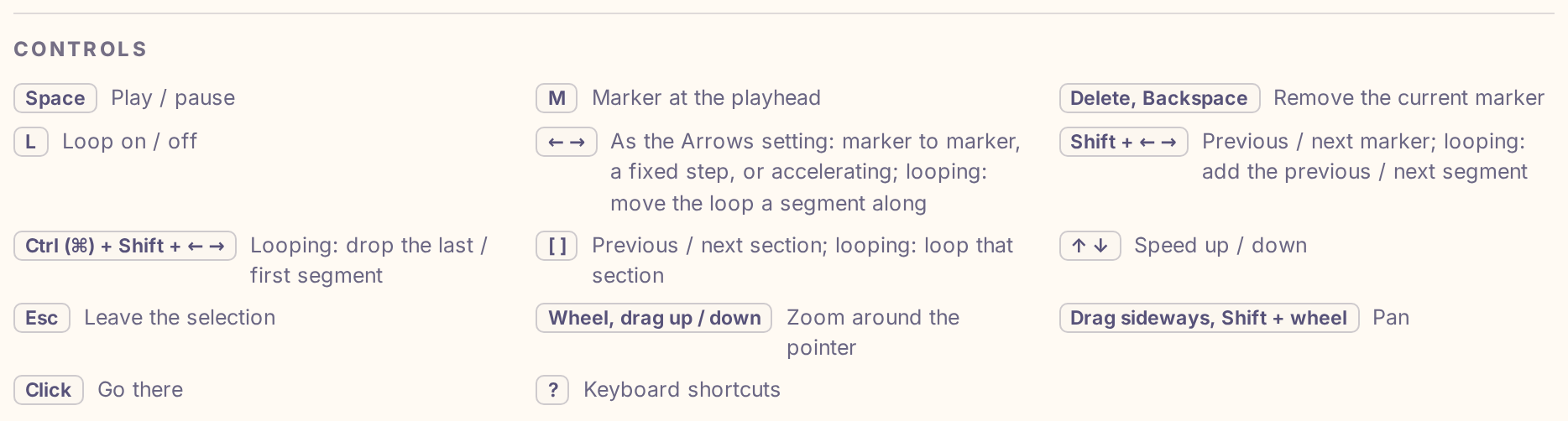
- ← and → move the loop a segment along, keeping its length: from segment 3 to segment 4, or from 3–4 to 4–5.
- Shift + → adds the next segment to the loop and Shift + ← the one before it, so you practice getting into and out of the hard part.
- Ctrl (⌘ on a Mac) + Shift + ← or → drops the last or the first segment again.
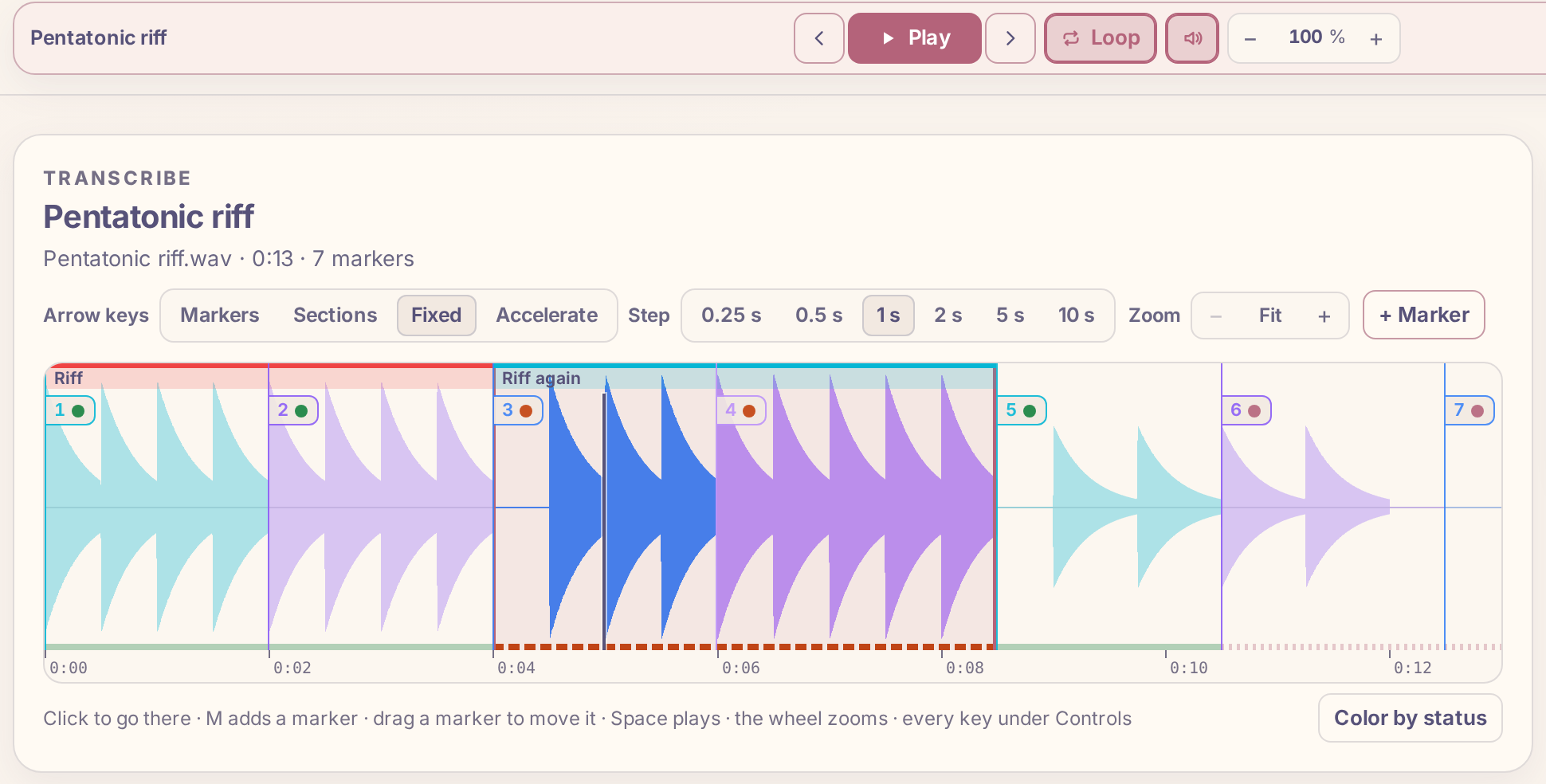
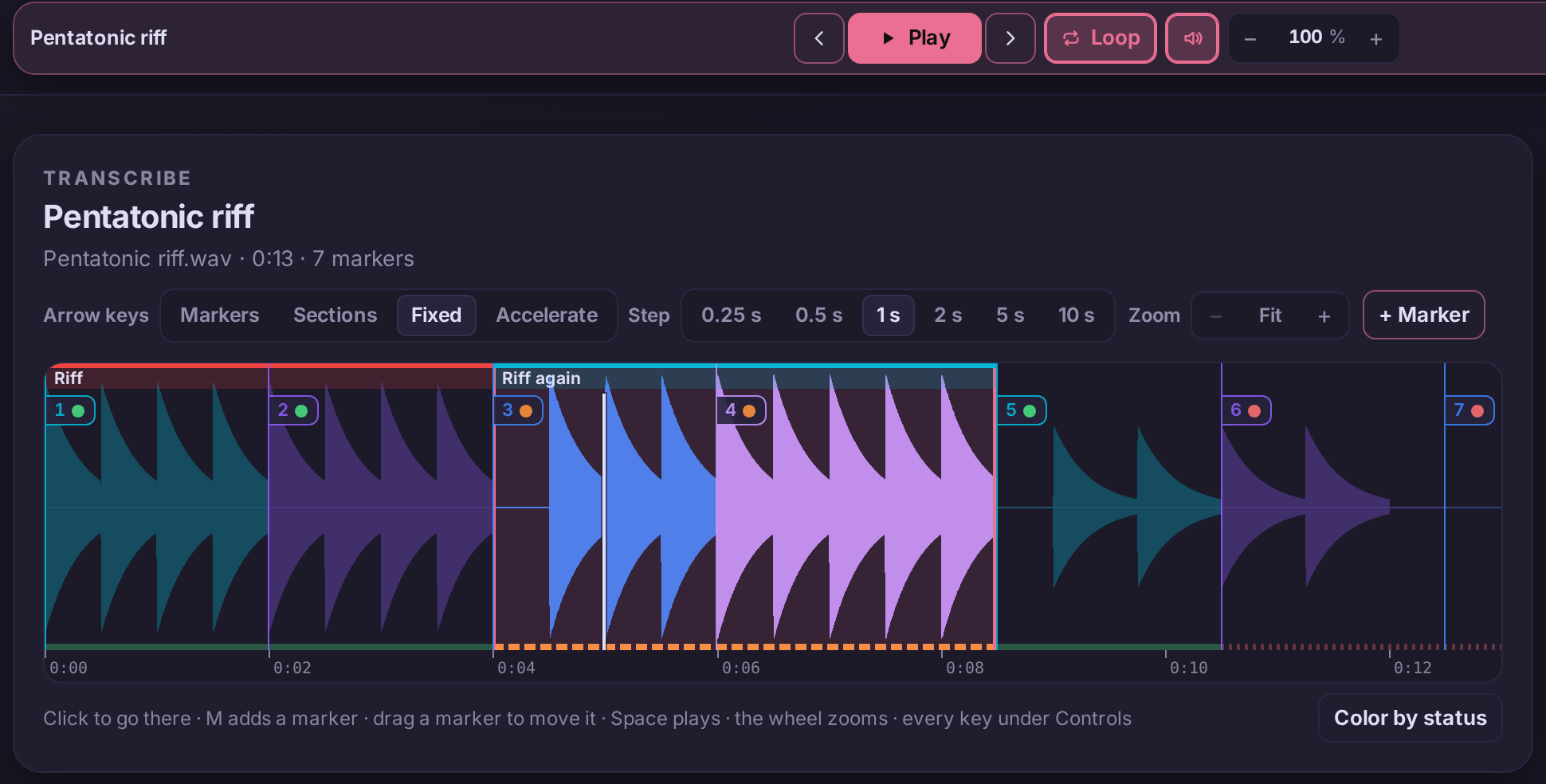
Widening is the step people skip. A passage you can play from its first note may still fall apart when you arrive at it from the bar before, so always finish with a loop that starts earlier than the hard part.
Step 5: Loop several hard spots at once
A song often has three or four hard places far apart. Click the number of each of those segments in the marker list: the waveform keeps only the selected segments, end to end, and playing plays only them, one after another. With the loop on, they repeat. This is a quick round through every hard spot without the easy parts between them. Clear selection or Esc brings the whole recording back.
If you mark each segment's status (red for "Can't play it yet", orange for "Learning", green for "Confident"), pick the red status in the legend above the list and press Select shown to select exactly the parts you can't play yet.
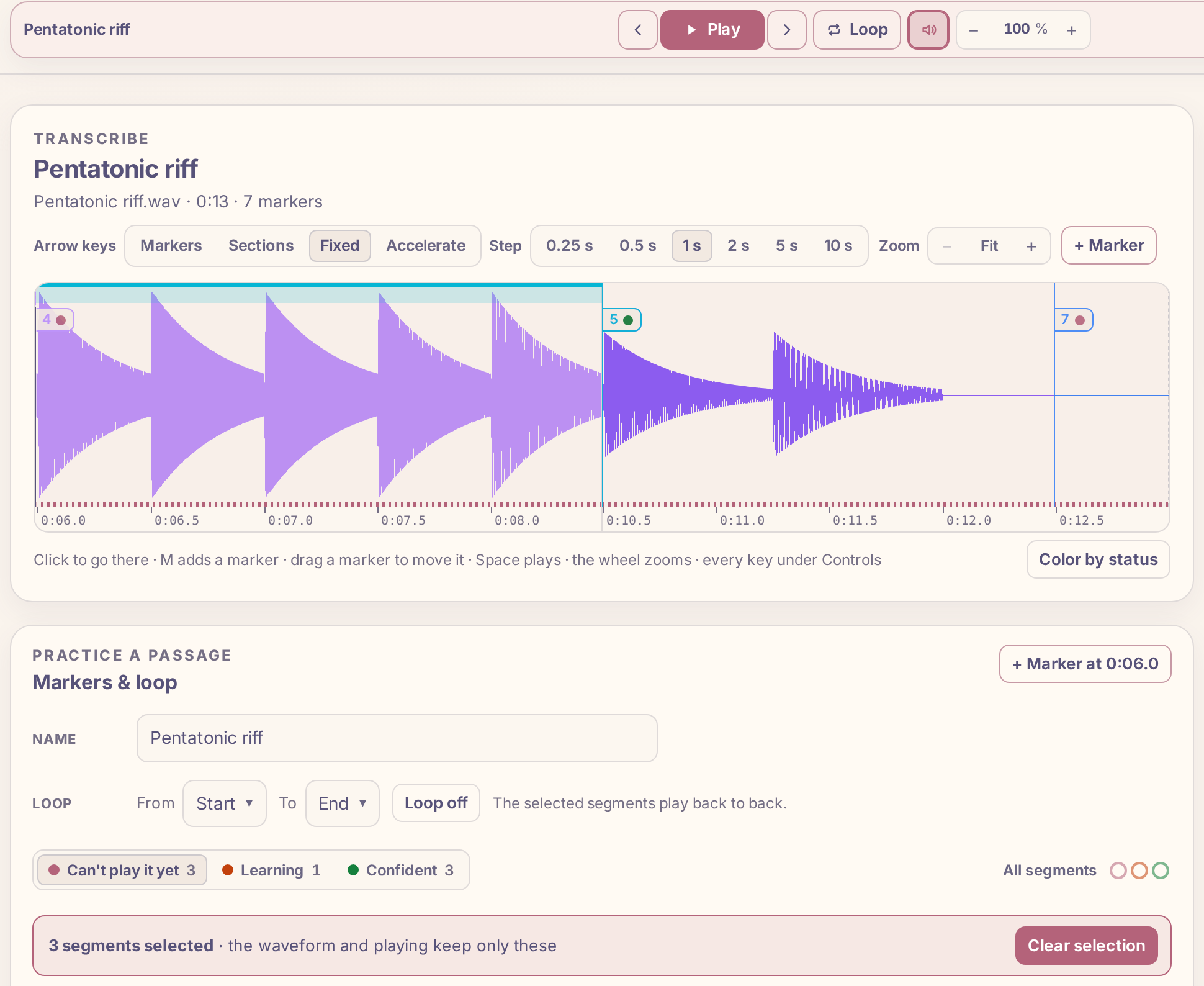
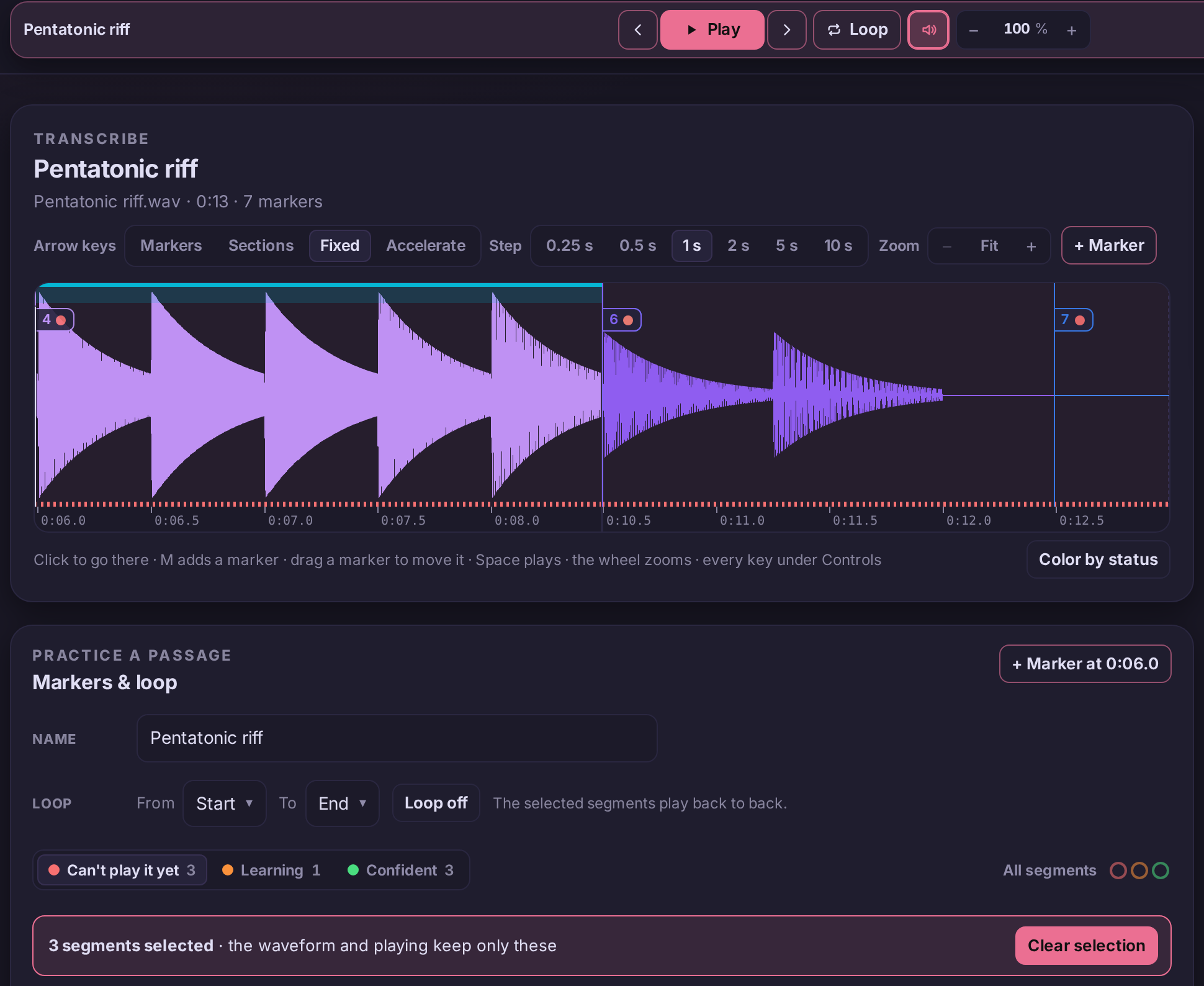
For longer parts, group segments into sections. With the loop on, [ and ] loop the previous or next section.
Keyboard controls
Every key on the Transcribe page is listed under Controls, below the markers. The ones you use most: Space plays and pauses, M adds a marker, L turns the loop on and off, and ↑ ↓ change the speed.
Step 6: Play it without the loop
A loop always gives you a fresh start. Before you call the part learned, turn the loop off, start eight bars earlier and play through it at full speed, once. If it holds, move on. If it doesn't, the last loop you used tells you where to go back to.
What to practice next
- How to slow down a song without changing the pitch
- How to learn a guitar solo by ear
- A minor pentatonic on the guitar the shapes most riffs and solos use
- Am7 arpeggio on the guitar chord tones to aim for in a run